Create a SharePoint site using REST in workflow with SharePoint Designer in office 365

SharePoint 2013 Workflows does not have any actions for creating a SharePoint sites, but you can solve this using the «call http web service» action and SharePoint REST API.
I wanted to give the users a form to order new sites in an easy way without being a site owner. I wanted to solve this using a SharePoint list with an attached workflow as a site order form.
  1. Enable Workflow can use app permissions
  2. Create a list for ordering sites
  3. Create a workflow that creates a site when new item is created
  4. Grant full control permission to workflow (needed for workflow to create site) 

Enable Workflow can use app permissions

  1. Under Settings button
  2. Select Site settings
  3. Select Manage site features
  4. Click Activate on Workflows can use app permissions

Create a list for ordering sites

  1. From your site – click Site Contents
  2. Click Add an app
  3. Click Custom list
  4. Give the new list a name like «Order project site» and click OK
We do not need any more fields for this proof of concept.

Create the workflow

  1. Click Order project site in the left menu to open your list
  2. Click List in the top menu to open list settings
  3. Click Workflow Settings in the toolbar, then click Create a Workflow in SharePoint Designer
  4. Click Allow if you get a security warning
  5. Enter a name for your workflow and click OK
  6. Rename the Stage to «Creating request header»
  7. Add a Build Dictionary action
  8. Name the output variable «RequestHeader»:
  9. Click this to add variables to the dictionary
  10. Click Add
  11. Add a string variable named content-type with the value application/json;odata=verbose and click OK
  12. Add a new string variable named Accept with the value application/json;odata=verbose and click OK
  13. Click OK
  14. Click Stage in the toolbar to create a new step
  15. Rename the stage to Creating Request Body
  16. In Stage: Creating request header set Transition to stage to Go to Creating Request Body
  17. In Stage: Creating Request Body add a new Build Dictionary action
  18. Set output to a new variable MetaData
  19. Add string variable named type with value SP.WebInfoCreationInformation
  20. Click OK to confirm all open dialog boxes
  21. Add a new Build dictionary action
  22. Set output to a new variable named RequestHeader2
  23. Add these variables to RequestHeader2:
NameTypeValue
UrlStringCurrentitem: TitleClick the fx button to add the Title of the current list item:
TitleStringCurrentitem: TitleClick the fx button to add the Title of the current list item:
DescriptionStringCurrentitem: TitleClick the fx button to add the Title of the current list item:
LanguageInteger1033
WebTemplateStringsts#0
UseUniquePermissionsStringfalse
__metadataDictionaryVariable: MetaDataClick the fx button to add the previous created MetaData variable:
  1. Click OK in all dialog boxes to save RequestHeader2 dictionary variable
  2. Add a new Build dictionary action
  3. Set output to new variable named RESTparameters
  4. Add a variable named parameters type Dictionarywith the value of the previous created RequestHeader
  5. Click OK to close all open dialogs
  6. Add a new Stage and rename it to Creating Site
  7. Set Transition to stage in Creating Request Body to go to Creating Site
  8. In Stage: Creating Site add App Step
  9. In App step add Call http web service action
  10. Click this to add the web service URL
  11. Enter the URL (use your own site and add(https://sitename.com/sitecollectionname) /_api/web/webinfos/add to it) and select HTTP Post as HTTP method:
  12. Click OK when done
  13. Select the Call HTTP web service action
  14. Click Advanced Properies in the toolbar
  15. Set RequestHeaders to variable RequestHeder and set RequestContent to variable RESTparameters:
  16. Click OK to close dialog
  17. In Stage: Creating Site set Transition to stage to go to End of Workflow
  18. Click Publish
  19. Click OK in the next dialog:
  20. Click Create site just below the Create site tab:
  21. Check Start workflow automatically when an item is created
  22. Click Publish in the toolbar and confirm if you get any warning.
Grant full control permission to workflow
The following steps must be completed by a user that is a site owner.  These actions require that a workflow has been published to the site.
  1. Click on the Settings button
  2. Go to Site Settings
  3. Under Users and Permissions, select Site app permissions
  4. Copy the client section of the App Identifier. This is the identifier between the last «|» and the «@» sign.

    Example:

  5. Navigate to the Grant permission to an app page. This must be done by browsing to appinv.aspx in the site.
    http://{hostname}/{site}/_layouts/15/appinv.aspx

    Example:


  6. Paste the client id in the App Id field and click Lookup
    Example: 

    Example:You will see complete details of the workflow app id.
  7. Paste the following Permissions Request XML to grant full control permission
       1: <AppPermissionRequests>
       2:     <AppPermissionRequest
       3:          Scope="http://sharepoint/content/sitecollection"
       4:          Right="FullControl" />

       5: </AppPermissionRequests>
Example:

  1. Click Create. You will then be asked for consent. Verify that you are asked for consent to give workflow full control of the site. If you do not see full control consent request it probably means that there was an error in the permissions request XML.
Example:

  1. Click Trust It
Your list should now create a new site each time an item is added.

Copy item from one list to another, using Sharepoint designer workflow

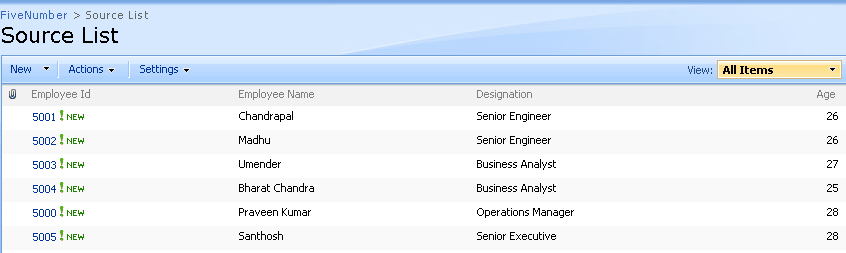
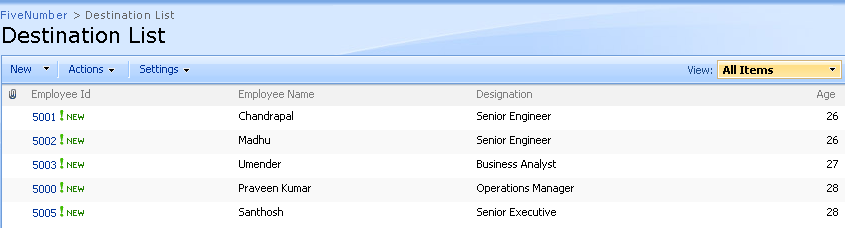
In this post you will learn how to copy list items from one list to another using Sharepoint Designer workflow, for this you need basically two lists, Source List and Destination List
Source List
Source List
Copy Item Workflow - Sharepoitn Designer
Copy Item Workflow - Sharepoint Designer
Source List
Source List
Destination List
Destination List
Create two custom lists:
Source List (below are columns and column types)
Employee Id (Single line of text)
Employee Name (Single line of text)
Designation (Single line of text)
Age (Single line of text)
Destination List (below are columns and column types)
Employee Id (Single line of text)
Employee Name (Single line of text)
Designation (Single line of text)
Age (Single line of text)
After creating the two lists:
  • Open site in Sharepoint Designer 2007
  • Click File New Workflow, which opens Workflow Designer window
  • Enter the name of the workflow in the appropriate box
  • Select the list name (Source List) from ‘what sharepoint list should this workflow be attached to‘ dropdownlist
  • After selecting the list from the dropdownlist, select at least on checkbox from the following: ‘Allow this workflow to be started manually from an item
    Automatically start this workflow when a new item is created
    Automatically start this workflow whenever an item is changed
  • Click Next
  • Enter the Step Name in the appropraite box
  • Click on the Conditions buttons and select the ‘Compare Source List item
  • Click on the field and select the field name (Age), like that give the condition like if source list greater than Age
  • Now, click on the Actions button to perform what action to be done if the condition is satisfied
  • Select Copy list item
  • Select the current list (Source list) and then select the Destination list (where to copy the item)
  • Again, Click on the Actions button and select ‘stop the workflow‘ and enter the message
Now, try to add the item in the source list (Employee Id, Employee Name, Designation, Age)
If the age is greater than 25 then the row will get update in the destination list too.

How to Configure and Publish InfoPath to SharePoint 2013

Brief about Infopath :

New Features
  • SharePoint Sandboxed Solutions
  • Publish Forms with One Click
  • Enhance SharePoint List Forms
  • Host Forms on Portal Pages using the InfoPath Form Web Part
  • Richer Web Forms
  • Standards Compliant Browser Forms
New Controls

The feature gap between client and browser forms has been narrowed, creating a more consistent form-filling experience for all users. Controls and functionality that are now supported in browser forms include the following:
  • Bulleted, numbered, and plain lists
  • Multiple selection list boxes
  • Combo boxes
  • Picture buttons
  • Hyperlink capabilities
  • Choice group and section
  • Date and time controls
  • Person/group pickers
  • Filtering functionality
Write and Edit Code using Visual Studio

The Microsoft Visual Studio Tools for Applications IDE that was integrated with InfoPath 2010 has been removed in InfoPath 2013. To write or edit form code in InfoPath 2013, Visual Studio 2012 is now required with theMicrosoft Visual Studio Tools for Applications 2012 add-on installed. The programming experience itself has not fundamentally changed, but you can now use the full Visual Studio development experience when writing managed code for your InfoPath forms.

In this post, I will show you how to configure and publish a InfoPath Form to SharePoint 2013. 
Notes: To configure and publish InfoPath to SharePoint 2013, the following items are required:
  1.  SharePoint Enterprise 2013
  2.  Microsoft InfoPath Designer 2013
  3.  An account to access the SharePoint 2013 Site
  4.  Having the SharePoint Server Enterprise Site Collection feature activated
i)  To activate the SharePoint Server Enterprise Site Collection feature

ii) Go to Site Setting --> under Site Collection Administration

iii) Select Site Collection Feature --> Active SharePoint Server Enterprise Site Collection features
 
Make sure States Service is started.  Go to Central Administration --> click Application Management --> under Service Application section --> click Manage Service Application
 
If you don’t see State Service in the list, go to Central Admin --> click Configuration Wizard --> click Launch the Farm Configuration Wizard--> click Start the Wizard --> Select State Service and click OK.

Create the InfoPath form

Step 1: To create the InfoPath Form, open InfoPath Designer 2013 and under Available Form Templates, select Blank Form and click the Design Form button.
  
The design form will appear as shown:
 
Step2: Design the Form.
Go to the Insert tab and in the tables section, double click the Two-Column 2 Heading table to insert the table into the Design Form.

Click to add heading text and type "Contact Info".  Right click on the form, select Insert, and then Rows Below (repeat this 2 times to add 2 rows). The Form should look like this:

In the Fields window on the the right hand, right click on the myFields folder, and click Add.
 
This "Add Field or Group" form should show up:

Repeat the steps above to add the remaining fields, using the "text" data type:

Drag each field and add it to the form:
 
Now, we have Simple InfoPath form with the info above.

III. Publish InfoPath to SharePoint 2013

To publish the InfoPath Form, click File, click Publish, and then click SharePoint Server to bring up the Publishing Wizard form.  On the first page of the Publish Wizard, type the URL of the SharePoint site where you would like the new form to be located and click Next.

On this page of the Publishing Wizard, select the option corresponding to where you want to publish the InfoPath to:
   

Publish InfoPath Form Template to Form Library

Select the Form Library option if you want publish the new form to a SharePoint Form library only.  Click Next to go to the next Publishing Wizard page.
On this page, you have the option to publish to an existing form library or create a new form library.  If you select create a new form library and click Next, this page will appear:
On this page, type the Name of the new library and click Next. I chose "InfoPath Library".  Here, you have the option to promote form fields into the columns of the library.  Click Add to add those columns and click Next.  These fields will be available as columns in the SharePoint Site.
Then, click Publish to publish the InfoPath Form.  Select Open this form library … and clickClose.
 
The InfoPath Library on SharePoint is opened.
Click New Document and the InfoPath Form will be open in edit mode.
  
Fill out the form and click Save.  Type the name of the InfoPath Form and click Save.
 
The InfoPath Form is in the SharePoint site as shown below:

Publish InfoPath Form Template to Site Content Type

Select the Site Content Type (advanced) option if you want to publish the InfoPath form template that binds to a Site Content Type.  This option will allow the form template to be used in multiple libraries and sites.

Give a Content Type name and click Next.
Specify a location and file name for the form template.
  
To use InfoPath as a Content Type, go to the Library in which you want to create the form, click the Library tab --> click Library Settings --> click Advance Settings --> under Allow management of content types, select Yes.
Under the Content Type section, click Add from existing site content types --> Select Microsoft InfoPath from the "Select site content types from" drop down list --> select Info Patch Content Type from Available Site Content Types box --> click Add, and click OK.
Go back to the Library and click the Files tab, click the down arrow at New Document, and click InfoPathCT.

Publish InfoPath as Approved Form Template

Select the Administrator-approved form template and click Next. This option will make the form template available on all site collections.
Specify a location and file name for the form template and click Next.
 
 
To re-use the InfoPath template on other Site Collections, follow these steps below:
In Central Administration, click General Application Settings --> under InfoPath Forms Services, click Manage form templates.
  Click Update form template and select file InfoPathSC which we saved before and click Ok
  
 Make sure the form template is uploaded success and click OK
 
 Now the Form Template is uploaded to the Manage Form Template page.
  
 Click on the down arrow besides the Form template to activate the InfoPath Form Template at the site collection.
  
Go to the other site collection to activate the feature (Click Site Settings --> under Site Collection Administrator section, select Site Collection Features --> Activate InfoPathSC).

After that, go to the list in which you want to re-use InfoPath Form and add Content Type.
 
Now, you can use the InfoPathSC Form in that site collection.