Answer : Microsoft SharePoint is an enterprise collaboration and content management platform which enables users to connect each other and share the information across an organization. Indirectly this solves the problems in an organization to share the documents, security, business process, maintaining data etc. SharePoint 2010 has rich UI and plenty of features.
2. What is a site collection in SharePoint?
Answer :
1. A site collection is a set of web sites.
2. Every site collection has top-level site, created when the site collection is created.
3. There might be multiple site collections in web application and each site collection may have a multiple child sites
3)Difference Between Site Template and Site Definition?
Site Definitions
|
Site Templates
|
| Files are on disk, better performance. | Files are in database, less efficient. |
| Highly customizable and extensible (XML and .NET code is much more flexible than UI) | Not easily extensible (You are limited by what UI offers) |
| Can provision multiple webs * | Can only provision one web |
| Complex to create | Easier to create |
| Requires admin access to server for deploying. | Installable from a Web UI by site owners. |
| Modifying the site definition after provisioning at least one site from it is not supported and might break existing sites. | Custom templates can be modified without affecting existing sites that have been created from the templates(**). |
4) How does Client object model works?
Ans. When we use SharePoint client API’s to perform a specific task, the SharePoint Foundation 2010 managed client object model bundles up these uses of the API into XML and sends it to the server that runs SharePoint Foundation. The server receives this request, and makes appropriate calls into the object model on the server, collects the responses, forms them into JavaScript Object Notation (JSON), and sends that JSON back to the SharePoint Foundation 2010 managed client object model. The client object model parses the JSON and presents the results to the application as .NET Framework objects (or ECMAScript objects for ECMAScript).
5)How to create a simple Website in SharePoint 2010?
In order to create a Website in SharePoint 2010, we need to use
SharePoint 2010 Central Administration tool. As soon as you click on SharePoint
2010 Central Administration tool it will ask for credential do put your
credential and you will directed to the SharePoint 2010 Central Administration
screen. Now from the Application Management screen click on Manage web
applications, as soon as you click on Manage web applications a new window will
open, now from the top most left of the screen click on New menu, again a new
window will pop-up of Create New Web Application which enables you to create new
web application.
6)What are the security improvements in SharePoint 2010 ?
In SharePoint 2010 a variety of security methods have been introduced.Claims-Based Authentication - Claims based authentication is based on identity. and trust.Code Access Security - in which you can specify your own code accesssecurity (CAS) policy for your web parts.Sandbox Solutions - Sandbox Solutions which when deployed to the server, SharePoint runs in a special process that has limited permissions.Cross-Site Scripting - Introduced to prevent Cross - Site Scripting (XSS) attacks.
3)Difference between creating Webparts in Server object model and client object model using Visual Studio 2010.
Steps to create simple Web part for Sharepoint 2010 with Visual Studio 2010
1. Open Visual Studio 2010
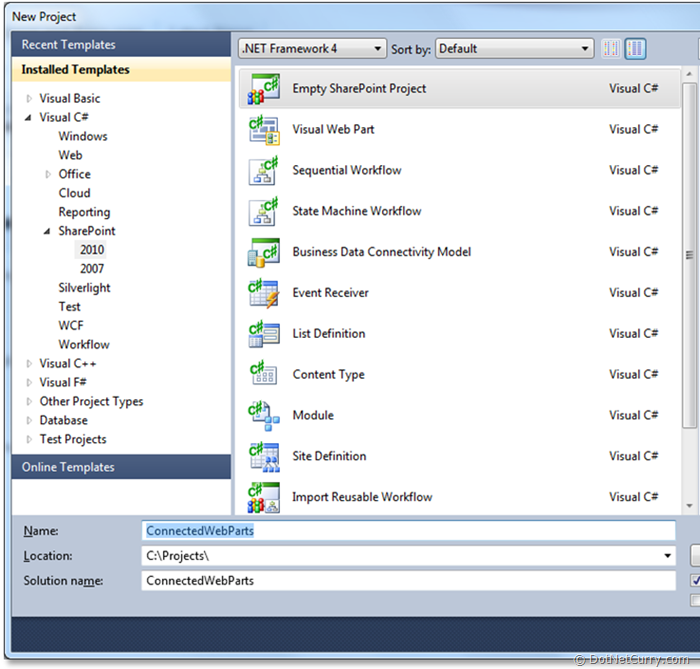
2. Create new project for webpart
3.Before we begin with our steps, let’s start by creating an empty solution which will be used later in our steps.
4. Select project templates of SharePoint 2010
5. Select Visual Web Part project template
6. Change default project name to any name that we like, here I choose “HelloWebPart” then click “OK”
7. Select a SharePoint hot to deploy this webpart, here I choose my local SharePoint hot http://Thomas/ then click finish
8. The HelloWebPart on visual 2010 look like
9. Select Design mode
10. Drag a label, textbox and button to the design like that
11. Double click on “Button” to make a simple change for server click event like
12. Change all file name to HelloWebPart like that
13. Change Title and Discription for HelloWebPart.webpart like
14. Now can be click on “Start debugging” or press F5 we go direct to browser with SharePoint
15. Click on Edit to edit our SharePoint page
16. Click on “Insert”
17. The Insert look like
18. Select HelloWebPart from Custom Categories with the Insert mode
19. Click on “Add”
20. So the Hello WebPart like that
21. Click Page then click “Save & Close” to save our change for page
22. Type your name inside textbox like “Mr. Luke” then click button you see like that
Note : 1) We can create webparts only for local(i.e in servers) but not for online sites(i.e Office 365)
Client Object Model(COM) creating webparts using Visual Studio 2010 (using silverlight)
1) Open Visual Studio 2010
2) Select your silverlight appliacation
3)Select your silverlight appliacation versions(here i used silverlight 4.0 version)
4)After selecting these you will get window like this
5)Do something
Note : You must need to Build our solution,otherwise .xap file cannot create..
For creating Library
6)Then got to your sharepoint site
7)After opening your site,then select Site actions ->More options -> left side(browse from will be there) here you select the library and create it,like below in image.
8)After creating your document library you will see like below image
9)Upload your .xap file into that library (click on Add document -> browse ->find your program location
-> Select ClientObjectModel.Web -> Select Client bin -> you will find .xap file,select it and upload it)
10)Uploaded .xap file look like this
11)Copy a shortcut of the .xap file(in that shortcut the link will be there)
For creating Web Part
12)Then again Goto Site Actions-> More options -> select Page -> select Web Part Page and name it and create it.
13) click on Add web part,you will see this window,select Media and Content and Silverlight web Part,then click Add,you will see this image
14)Already you have copied the CopyShortcut from library,paste in it then click OK button(see step 11 for Reff)
15)You will see this window
Output :